User Defined Functions for Repetitive Calculations

[thrive_leads id=’2430′]

Welcome back for video three in this series on Seven Efficient Ways to Create Accurate Engineering Calculations in Excel. Thanks for joining me in the last two videos and leaving your comments and feedback. I really enjoy hearing about how many of you are learning new Excel techniques that you could use in your daily engineering work. Mastering advanced Excel techniques will allow you to perform your engineering work more efficiently and accurately which is going to help you stand out from the crowd at work.

The techniques I’ve been sharing these videos are just a small sample of what I use to leverage Excel’s capabilities in order to effectively analyze stacks of data and create precise calculation tools to help the organizations that I’ve worked for make better engineering decisions. I hope this video series is helping you improve your efficiency at creating accurate engineering tools in Excel too.

In this video I’ll show you how to create a user defined function for repetitive calculations. User Defined Functions, or UDFs are custom functions that you can create and they work just like built-in Excel functions, like the IF function, for example. They accept arguments and then return a value to one or more cells on a worksheet.

Functions are written in VBA, which is the built in programming language included in Microsoft Office products. I use UDFs to replace both simple and complex cell formulas that I find myself using over and over again, for outputting material properties, performing interpolation, and even solving differential equations. We won’t go too complicated here but we’ll start with something really simple of function to calculate bending stress in a beam.

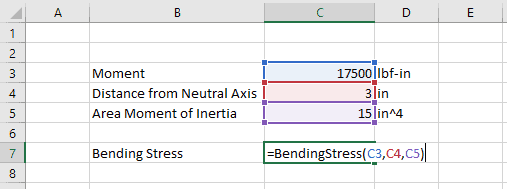
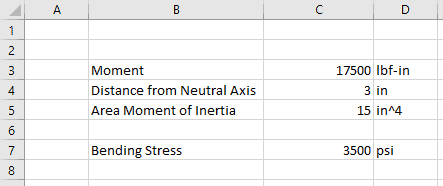
This spreadsheet has already been set up with an input section where the moment, distance to the neutral axis and the area moment of inertia have already been entered. It also has a result section which has two different results cells, in the one will calculate the stress right in the cell using a cell formula, and in the other we’ll use the UDF or the user defined function that we’re going to create and then we’ll compare the results.

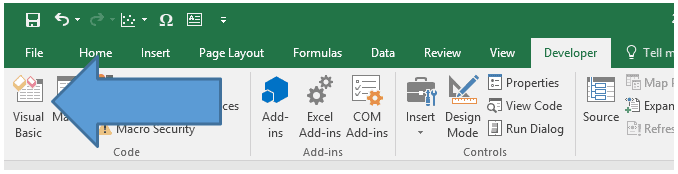
Now I’ve already named the input cells M, Y and I, so we can just use those directly in the formula. The bending stress equals M times Y divided by I, and we end up with a result of roughly 1.2 megapascals. Now let’s duplicate that with a UDF. The first step to creating a UDF is to open up the Visual Basic editor which is found up here in the developer tab, we normally click right here.

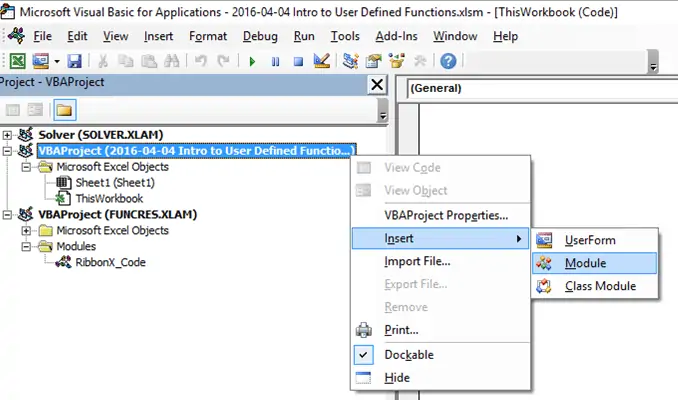
If you’re not seeing the developer tab in your toolbar, that’s because you haven’t enabled it. To do so we’ll go to file, options, and customize ribbon, and click the checkbox right here next to developer. I’ve already got mine added, so we’ll just go ahead and open up the Visual Basic editor clicking on this button right here. Now user defined functions are contained in modules, and we’ll have to insert a module into the worksheet here in the project explorer window, and we’ll do that by right clicking right here on the Excel worksheet, and then selecting insert, and module.

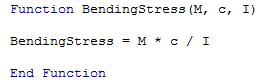
The new module has been created right here, it’s called module one. When that module was created, it automatically open up the code window, and we have this white space over here where we can enter our function. Functions always begin with the word “function”, followed by the name of the function which we’re going to call bending stress, and its arguments which are M, Y, and I.

Then when I type enter, the VBA editor automatically adds the last line of the function which is called N function. Again, not a surprise there, and we’ll just go ahead and add a couple of extra lines in here so we’ve got some white space to add our code. Now between function and end function, we can have loops, conditional statements, arrays and all kinds of other VBA functions and objects.

This is a really simple function for now just to get you started with creating a user defined function, so it’s only going to have one line. The result that we want to return to the cell has to be the same name as the function. Here again, I have to type bending stress again just the same way as I’ve typed it up above in the name of the function, I can type equals M times Y divided by I. It really is just that simple just like I said it was going to be, an easy one line user defined function. We can close out the visual basic editor just by clicking the close button up here.

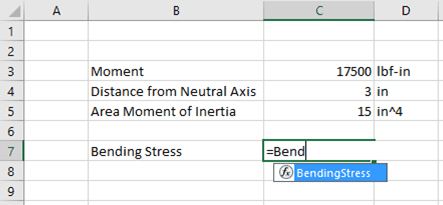
Before we go any further, we should save our workbook, but because we’ve had a VBA project we have to save it as a macro-enabled workbook. To do that, in this drop down we’ll select Excel macro-enabled workbook, and then click save. Now we’re ready to use our UDF in the worksheet. We’ll go to the cell and type in equals bending. As you can see, IntelliSense recognizes UDFs too so you can just type tab to auto complete that.

[thrive_leads id=’2430′]

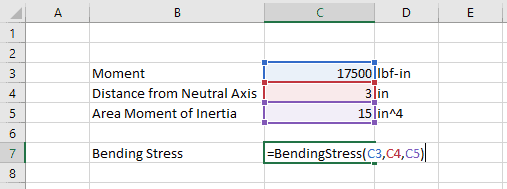
What is unfortunate about UDFs is that Excel does not give you information about the arguments for the function like you would get with a built-in Excel function. There is a nice little tip, if you’ve forgotten the arguments to your user defined function, you can just type control, shift A to fill them automatically. What’s even better about this is that since the argument names match the name cells that were created over here, they’re automatically selected, we don’t have to do anything else. All we have to do is just hit enter and we get the same result with the UDF as we did with the cell formula.

I recognize this is just a pretty trivial example, but as you can see, UDFs are really powerful for calculations that are either very complex or that you find yourself repeating over and over again. You can write that calculation into a UDF and use it throughout your work book without having to retype the formula every time.

Now, I know I’ve said this over and over again, but Excel is the best tool engineers can use for performing calculations and analyzing data. Mastering it will make you more efficient, accurate, and valuable at your job. So if you’re ready to take your Excel skills even further and you don’t want to spend years picking up bits and pieces of Excel knowledge here and there, you’ll want to watch out for the final video I’m going to send you in just a few days.

That’s because I’m reopening the doors to Excel Master Class for engineers. In the next video, we’ll tell you all about it and how you can enroll. It’s the course I’ve built to give you the exact engineering specific techniques I use in Excel to build calculation tools, analyze data, and be a more efficient, accurate and valuable engineer. After taking the course, you’ll be able to sky rocket your productivity in Excel. I’ll teach you simple techniques that will allow you to save time when doing both simple and complex analysis.

You’ll also learn how to properly build spreadsheets for repetitive calculations so you can avoid reinventing the wheel for the same calculations on every project. Also, the course will teach you how to avoid Excel pitfalls. Excel has a lot of commands and functions that are not only confusing at times. Misusing them can lead to wrong results that sometimes go undetected. Instead of just giving you formulas to plug into Excel, that probably wouldn’t be right for your specific application anyway, I’ll teach you how the functions work so that you have the confidence and flexibility to create formulas that meet your specific needs.

Finally, Excel Master Class for engineers will strengthen your Excel skills so that you can land that next job or promotion. You’ll learn effective ways to create Excel tools that can be shared with others. As a result, you’ll gain recognition and become the go-to resource for your coworkers, then you’ll be able to use your status to show your employer that you are a valuable team member.

I’ll be opening the doors for enrollment soon, but only for a limited time, so be sure to watch your inbox for an email from me with the details in the course. Well, that’s it. Thanks so much for joining me in this video series. I really hope you’ve enjoyed it. I know I’ve enjoyed putting it together and hearing all your feedback. Now, before you go, please leave a comment and let me know what calculations are you doing over and over again that you could turn into a user defined function. Thanks again for watching and I’ll talk to you soon.

[thrive_leads id=’2430′]

Scroll to Top
You're almost there!
Complete... 50%
Please enter your name and email address below to receive a link to the toolkit.

You’ll also receive regular tips to help you master Excel for engineering.

We hate spam and promise to keep your email safe.

FREE ACCESS:

THE ENGINEER'S EXCEL TOOLKIT

By Charlie Young, P.E.

Take your engineering to the next level with advanced Excel skills.