There are some formatting techniques that engineers need more often than the average Excel user. These techniques will help you format your spreadsheets, so they are clear and easy to understand, both for your own benefit as well as for other users.
Proper documentation is the first step in clarifying a spreadsheet. Your input variables should always have a name, and you may want to include a symbol for the variable as well. Sometimes, those symbols are Greek letters. Worksheet 01e contains data for an orifice pressure drop:
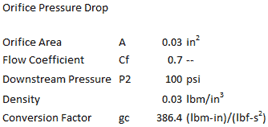
It will help us and other engineers reading this spreadsheet to have the appropriate symbol for density, especially if it’s used in any formulas. To insert the symbol ρ for density, first click in the desired cell. Then, go to the Insert tab and choose Symbol on the right side. The box that pops up has many symbols available:
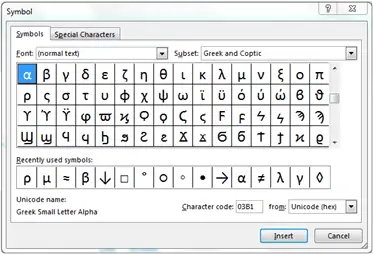
You’ll find all of the Greek letters here (you may have to select “Greek and Coptic” in the Subset menu at the top right). On the bottom is a list of the most recently used symbols. Double-click the symbol for ρ.

Elevate Your Engineering With Excel
Advance in Excel with engineering-focused training that equips you with the skills to streamline projects and accelerate your career.
We can also clean up some of the other symbols in this spreadsheet that would normally have subscripts (Cf, P2 and gc) so that they match whatever equation we are referencing. Double-click the cell to edit it, then highlight the letter that should be a subscript. Go to the Home tab and click the arrow to the right of Font:
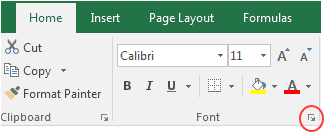
This opens up a Format Cells window. Any changes you make will only modify the text that’s highlighted. Under Effects in the lower right, check the Subscript checkbox and click OK:
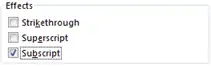
It’s also important to document units in engineering spreadsheets. In this example, some of our units are written using a caret symbol (^) to indicate exponents. We can follow a similar process to make the exponents superscript characters, i.e., instead of writing “in^2,” we can use “in2.” Double-click in the cell, delete the caret, and highlight the exponent. Click the arrow beside Font to open the Format Cells window and select Superscript.
Another way to clean up your spreadsheets is to use an appropriate number of decimal places. Excel calculates with 15 digits of precision, but that doesn’t mean they should all be displayed! You should limit your decimal places to a reasonable number of significant digits based on the inputs, so that your results don’t imply more accuracy than you can actually achieve.
Excel has a quick and easy way to reduce the number of decimal places that are displayed. First, select the data. On the Home tab, in the Number section, click this button:
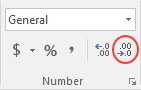
Each time you click it, the number of decimal places displayed is reduced by one. You can increase the number of decimal places using the adjacent button.
You may have a number with many leading zeroes (0.00000000123) or many trailing zeroes (123,000,000,000). In these cases, scientific notation will be more compact and cleaner on the spreadsheet. You can easily change a number to scientific notation with the Number Format dropdown menu in the Home tab:
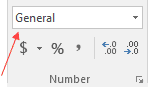
Scientific notation is an option in that menu, along with other common number formats.